
Picture a boiler service company. On the computer in the back office runs a program someone wrote for the firm years ago. It knows every customer, every boiler, the date of every visit. Each morning it prints the day's job sheets, and once a year it reminds each household that their service is due. It has done this, quietly, for longer than most of the staff have worked there.
Now the owner wants the engineers to see their jobs on a phone, the office to work from home on a Friday, and nobody to depend on that one computer. So the decision is made: move the program to the web.
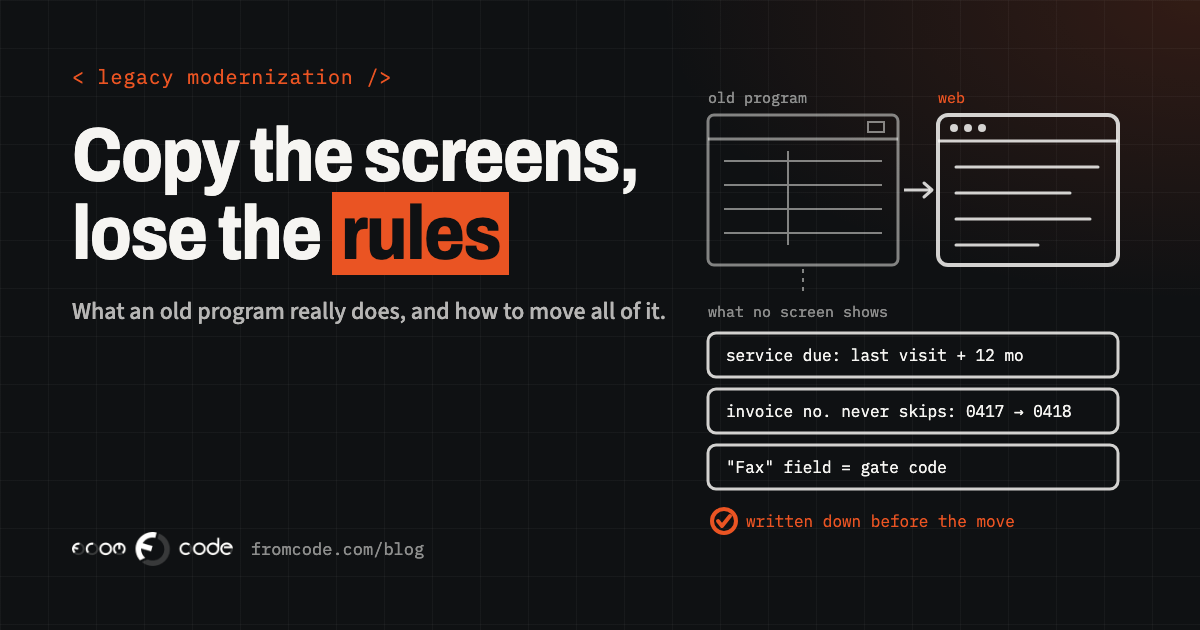
The mistake I see most often at this point is treating the move as copying screens. Somebody takes screenshots of every window, and the new system is built to look the same in a browser. Months later it goes live, and within a week the office discovers what the old program did that no screen ever showed. This article is about avoiding that: how to find out what your program really does, and how to move it without losing any of it.
The mistake: copying the screens
Screens are the visible part, so they feel like the whole program. They are what people point at when they explain their work, and they are easy to count: forty windows, forty pages to build. A quote based on screens looks precise.
But a program that has run a business for fifteen years is mostly made of what happens between the screens. The check that stops two engineers being booked into the same morning. The invoice number that must never skip. The rule that a commercial boiler is serviced twice a year and a domestic one once. The file that goes to the accountant every month in a format their software has accepted since the day it was set up. None of that has a window of its own, and none of it appears in a screenshot.
A new system that copies the screens will look right on the first day, and then miss these things one at a time, usually when it matters most.
First, is moving the right step?
Before deciding how to move, it is worth being clear about why, because an old program that still works is not automatically a problem.
If it was written in Visual Basic 6, Microsoft's own support statement says the runtime that VB6 programs need is still supported on Windows 11 for the lifetime of the operating system, so the program will most likely keep running. The same page says the tool used to build and change those programs has been unsupported since April 2008, that VB6 programs remain 32-bit only, and that Microsoft "strongly recommends" replacing them. In plain words: it runs, but every change depends on someone with old tools and old knowledge.
If it is a Microsoft Access database, check which Office it runs on. Support for Office 2016 and Office 2019 ended on 14 October 2025: the programs keep opening, but they no longer receive security fixes.
The good reasons to move are usually practical ones: people need it away from one desk, one person is the only one who can change it, the computer it lives on is getting old, or it cannot talk to anything else. Some programs should stay on the desktop, and I wrote about those in when a desktop program still beats a web app. If yours needs to move, the rest of this article is how.
Start by watching people work, not by listing screens
The most valuable first step costs no code at all. Sit next to each person who uses the program, for a morning each, and write down what they do. Not which buttons they press, but what job they are getting done: booking a visit, moving a visit, closing a job, chasing an unpaid invoice, printing tomorrow's sheets.
You will hear things like "I always press this twice, the first time it doesn't refresh", "if the postcode is wrong it won't let me save", or "on the last Friday of the month I run this report and send it to Maria". Every one of those sentences is a requirement. Some are rules the new system must keep. Some are faults the new system should fix. A few are habits nobody needs any more. The point is to see them all before deciding.
At the end you have a list of jobs, in your staff's words, with the person who does each one. That list, not the list of screens, is what the new system is measured against.
Find the rules nobody wrote down
Watching people shows what they do. The program itself knows a few more things they have long stopped noticing, because it does them automatically.
These hide in the code and in the database: a calculation that rounds a certain way, a status that changes on its own after thirty days, a customer who is quietly blocked from new bookings when an invoice is overdue, a number sequence that restarts every January. Someone who can read the old code, or the queries inside an Access file, should go through it and write each rule down in a sentence the owner can confirm: "A domestic boiler is due twelve months after its last service, a commercial one after six."
Then turn the rules into examples. Take twenty real cases from the old system, with the answer the old program gave: this customer, this boiler, this last visit, due on this date; this invoice, this total. The new system has to give the same answers to the same cases. It is the simplest test there is, and it catches the differences while they are still cheap to fix.
The data is the real asset
After fifteen years, the program is the least valuable part. The data is the asset: every customer, every visit, every note an engineer left about a difficult access or a dog in the garden. A web version that starts empty, or that brings only "the important fields", throws away the history the business runs on.
Old data is also rarely as tidy as it looks. Expect the same customer entered three times with slightly different spellings, dates typed as text, fields left blank for years and then suddenly used, and the odd record that breaks every rule. None of this is a reason to worry. It is a reason to rehearse: copy all the data into the new system early, look at it together, decide how each oddity is handled, and repeat the copy until it runs cleanly from start to finish. By switch-over day, moving the data should be a routine you have already done several times.
In almost every long-lived program there is a field that says one thing and holds another. The "Fax" column that has stored gate codes since nobody had a fax. The "Notes 2" field that the office uses for the engineer's preferred day. The customer type "X" that means "pays in cash, phone before visiting".
A migration that follows the labels will put gate codes into a fax field nobody looks at. Ask the staff, column by column, what they actually type there. It is one of the shortest conversations in the project and one of the most useful.
The paper and the files that leave the building
Old programs talk to the world mostly on paper and in files. Job sheets, service certificates, invoices, labels, and the monthly export to the accountant or the bank. Customers, engineers and other systems depend on each of those, and they notice the smallest change.
Collect one real example of everything the program prints or sends, and treat each one as a requirement in its own right. For a printed sheet, the layout people are used to matters: an engineer who knows where the boiler model is on the page reads it in a second. For a file another program imports, the exact format matters: column order, date format, decimal separator, the text encoding. Ask the accountant or the bank to test the first file from the new system before the switch, not after it.
What only the desktop could do
A desktop program can reach anything plugged into the computer: the label printer, the receipt printer, a barcode scanner, a card reader, a scale, a shared folder on the office server. A browser is deliberately more limited, and each of these needs a plan.
Most have a good answer today. Ordinary printing works from any browser. Many label printers can be reached over the network. A small helper program can connect the web system to a device that only speaks to the local computer. Some work, such as scanning in a storeroom with poor signal, needs to keep working offline and send its data when the connection returns. The point is to list every device and folder the old program touches during the watching step, so none of them is discovered on the first morning after the switch.
Move it in pieces, and run both for a while
The safest way to move a program that runs the business is in pieces, while the old one keeps running. Often the first piece is a web view that only reads the data: the engineers see their jobs on a phone, the office still works in the old program. That alone may solve the problem that started the project, and it proves the data copy works every day.
Then move one job at a time, in the order the list from the watching step suggests: usually the jobs done away from the office first, the monthly and yearly ones last. For a while both systems run side by side, and the twenty examples from the rules step are checked in both. When the answers match for a few weeks, that job moves over for good.
This takes a little longer on paper than one big switch. In practice it is usually faster, because problems surface one at a time, while everyone still has a working program to fall back on. I described the same approach for websites in moving an old PHP site forward without stopping it.
What the web version should do better
A move to the web is a chance to fix what annoyed people for years, and some improvements come almost free: finding a customer by typing any part of their name, each person with their own login and their own permissions, a record of who changed what, automatic backups you have actually restored, and access from a phone.
The order still matters. First the new system does everything the old one did, then it does more. Keep a separate list of improvements as you go, agree which ones belong in the first version, and leave the rest for after the switch. Mixing "the same, but better" into every screen is how a migration doubles in length and nobody can tell any more whether the new system is right.
The switch-over day
Pick a quiet week for the final switch, and let everyone know the date well in advance. On the day, the old program goes read-only, the last copy of the data runs (by now a routine you have rehearsed), the twenty examples are checked once more, and the office starts working in the new system.
Keep the old program available, read-only, for a good while after the switch. Someone will need to look up how a record looked before the move, and it is reassuring for everyone to know the old answers are still there. Agree in advance what would make you switch back, and how, so that the decision is calm if it is ever needed.
What to ask for before the work starts
If you are getting quotes for moving a program to the web, ask each developer what you will receive before the building starts. Good answers include: the list of jobs the program does, written in your words; the rules found in the old code, each confirmed by you; a set of real examples with the answers the new system must match; a rehearsed copy of all your data, with every oddity decided; one sample of every printout and file, approved by whoever receives it; and a plan that says which piece moves first and how you go back if something goes wrong.
A developer who asks to watch your staff work before giving you a final price is doing the most useful thing they can do for you. If they only ask for screenshots, show them this article.
Is there an old program your business still runs on?
Discuss your projectTell me what it does each day, and who depends on it.