
Why does a new colleague need six passwords on their first morning?
The e-mail has one. The booking system has another. The invoicing tool wants its own, the shared drive wants a fourth, and the system you had built two years ago still has the password somebody chose in the first week and wrote on a sticky note. By Wednesday the new person has asked three people for a reset, and one of them has pasted a password into a chat so the work can go on.
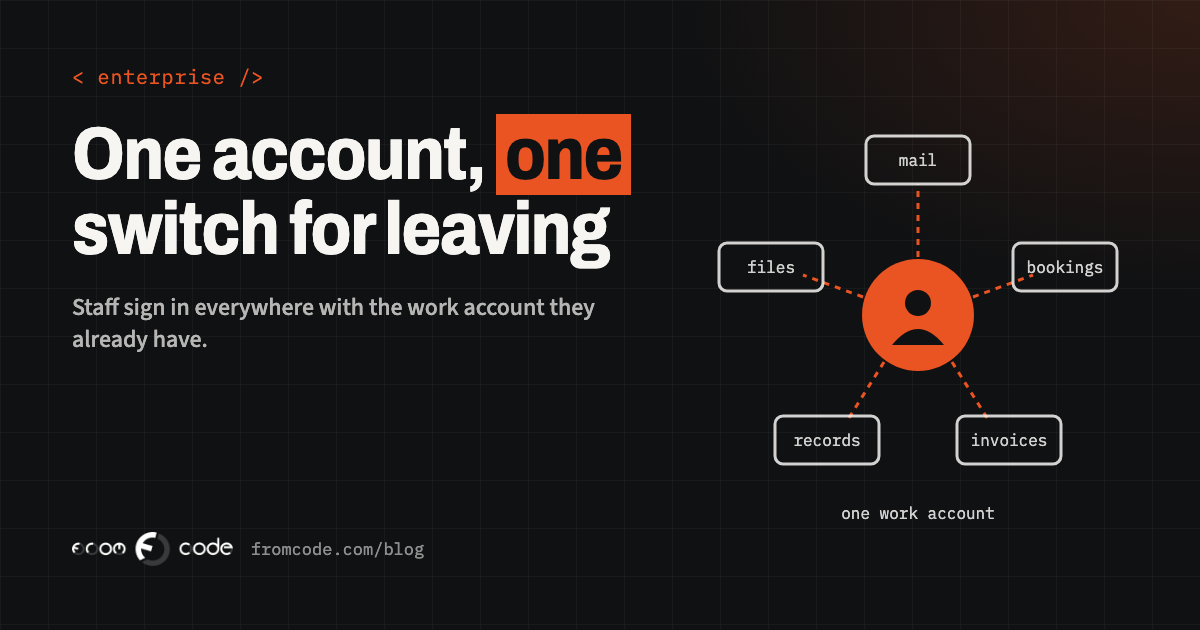
There is a calmer way to do it, and it is not exotic: your staff already have a work account for e-mail and documents, and your other systems can accept that same account at the door. Nobody keeps a second password, and when someone leaves, you switch off one account instead of hunting through a dozen systems.
This article is about what that means in plain terms, what you get from it, what it does not fix, and what to ask whoever builds or connects your systems. It is written for the person who owns the business, not for the person who sets it up.
What "sign in with your work account" actually means
You have seen the button: *Sign in with Microsoft*, *Sign in with Google*. Behind it, the system you are opening does not check a password itself. It sends the person to the place where the work account lives, that place checks who they are, and it tells the system "yes, this is Anna from reception". The system never sees her password at all.
The practical result is that there is one list of people in your company, and every connected system trusts that list. Add someone to it and they can sign in everywhere you allow. Switch someone off and the door closes everywhere at the same time.
Two things are worth keeping apart, because they get mixed up in conversations with developers:
- Who you are is decided by the work account. That part becomes simple.
- What you may do is still decided inside each system: who may open invoices, who may change prices, who may only look. Signing in with the work account does not decide that for you.
What the owner gets out of it
Fewer passwords to lose. A password that nobody has to remember cannot be forgotten, reused on another site, or sent in a chat. Verizon's 2025 Data Breach Investigations Report, based on more than 22,000 incidents, names credential abuse as the most common way in, at 22% of the breaches it reviewed (Verizon's announcement). Fewer passwords in circulation means fewer of them to be taken.
One switch for leaving. This is the part owners notice most. When a colleague leaves, the work account is closed on their last day and that is the end of it. You do not need to remember that she also had a login to the booking system, the customer records and the old reporting tool.
One place for the second step. If you want a second check at sign-in, such as a code on the phone, you turn it on once, in the work account, and every connected system inherits it. The alternative is asking each system to offer it, and some of them never will.
A calmer first morning. A new colleague receives one account and finds the rest ready. A support request for "I cannot get in" becomes rare, because there is only one way in.
The Monday after someone leaves
Think of a person who has worked for you for four years and moves on. On the last day you collect the laptop and close their e-mail. That feels like the end of their access, but a business system built a few years ago often has its own list of users, with its own passwords, and nobody put "close the login in the booking system" on the leaving checklist.
Nothing dramatic needs to happen for this to matter. The account just stays there, quietly working, for months or years. If it is ever misused, you also find it hard to say who it belonged to and why it was still alive.
With the work account at the door, that list of "places someone might still be able to get in" shrinks to one. You can answer the owner's question of the day, *can she still open anything of ours?*, by looking in a single place. This is also the strongest argument I know for doing the work: it is not about convenience, it is about knowing what is open.
Which account do you already have?
You very probably have one of two, and both are built for this:
- Microsoft 365, where the account sits in a service called Microsoft Entra ID. If your staff open Outlook and Teams with a work address, this is you.
- Google Workspace, if the company address works with Gmail and Google Drive.
Either can act as the front door for your other systems. The person setting it up registers the system with your account, and from then on the system offers the matching *Sign in with…* button. For Google Workspace, Google describes this in its own help pages: you add the system as a custom SAML app from the admin console, which needs a super administrator, and sign-in works when the e-mail address in the system matches the person's address in Google (Google Workspace Admin Help).
If you have neither, you are not stuck. Many small companies start by creating work accounts for everybody first, which is a small job in itself, and then connect the systems one by one.
The small detail that causes most of the first-day trouble
The system and the work account have to agree on who is who. Usually that agreement is the e-mail address. Anna is *moc.ynapmocruoy@anna* in the work account, and the booking system must hold exactly the same address for her.
If one system has her under a private address she used years ago, or an old spelling, the button will tell her she has no access, and she will phone you. Google's guide says the same thing in its own words: the sign-in e-mail has to match the person's address in Google.
So before anything is connected, it is worth an afternoon to go through each system's user list and put it next to the list of current staff. That check is useful on its own. People you did not know still had a login tend to show up in it.
What happens in the minutes after you switch someone off
Here is the part that is easy to assume and worth asking about. Closing the work account stops new sign-ins. A person who is already signed in somewhere may stay signed in until that session ends.
Microsoft documents a specific step for this: an administrator can revoke a person's sign-in sessions, which invalidates their refresh tokens, and Microsoft notes there might be a delay of a few minutes before the tokens are revoked. The same page says it does not apply to external users, because they sign in through their own home organisation (Microsoft Graph documentation).
Two practical conclusions follow:
- On the day somebody leaves, closing the account is not quite the whole job. Ask the person who runs your accounts to also end their active sessions, and treat it as one step on the leaving list.
- When a system is built or connected for you, ask how it behaves when the account is closed: does it stop at once, or when the person's session runs out, and how long is that? A good answer is a number of minutes, not "it depends".
A work account is a front door, not a vault
Signing in with the work account tells a system who is knocking. It does not make the system safe by itself. Inside each system you still decide who sees what, and that list deserves a look every time somebody changes role. The two jobs fit together: one account to know who they are, and a sensible set of rights in each system to know what they may touch.
People who are not on your payroll
A clinic has locums. A service company has an accountant, a freelance designer, a subcontractor who joins a job for three weeks. They do not have, and often should not have, a full work account.
There are sensible ways to handle them, and the choice is yours to make with whoever builds the system:
- Give them a guest or limited account in the same place, so they still disappear when you close it.
- Give them an access that ends on a date you choose, so a three-week job does not leave a login that lives for three years.
- Keep their access to one area only, instead of the whole system.
Your customers are a separate case again. Customers who log in to a portal normally sign in with their own e-mail and password, or with their own Google or Microsoft account. The work account is for your people.
What to ask whoever builds or connects your systems
You do not need to know the technical words to ask good questions. These work in a meeting:
- Can staff sign in with the Microsoft or Google account they already use? If not, why not?
- When I close someone's work account, what happens in the booking system, and how long does it take?
- Where do I see who has access to what, in one list I can read?
- Does a person who is not on the payroll get an end date?
- If the work account is unavailable for a few hours, how do I still get in, and who holds that emergency access?
- Who can add a new system to the front door, and is that written down?
The fifth question deserves a real answer. When everything runs through one account, that account's availability matters more, so there should be a named person and a tested emergency way in for the owner.
A sensible order to do it in
You do not need to move everything in a week.
- First, make the work account complete. Every current colleague has one, with the right address, and the second check is switched on for everybody.
- Then take the system with the most sensitive data. Customer records, patient notes, pay, invoices. Connect that one first, watch it for a fortnight, and fix the small mismatches.
- Keep the old passwords working side by side briefly, so one wrong address does not lock the whole team out on a Monday. Then close them for good.
- Write the leaving checklist with the work account at the top and the session step next to it.
- Do the rest one at a time. Each system after the first is faster than the one before it.
What I would do
I would begin with the account list, not with the technology. An afternoon comparing "who works here" with "who has a login" tells you more about the real risk than any product. Then I would connect the one system you would least like to lose control of, check what happens when a test account is closed, and only after that carry on.
I lead each project myself, so the person who asks these questions in the first meeting is the same person who builds the answer. If a system of yours has its own list of users and its own passwords, that is a normal thing to want to improve, and it can usually be done without replacing the system. How I approach this kind of work is on the services page, and the related reading below covers what to check when an application changes hands.
How many places could a former colleague still sign in to today?
Discuss your projectSend me the list of systems you use and I will tell you which ones can accept your work account.