
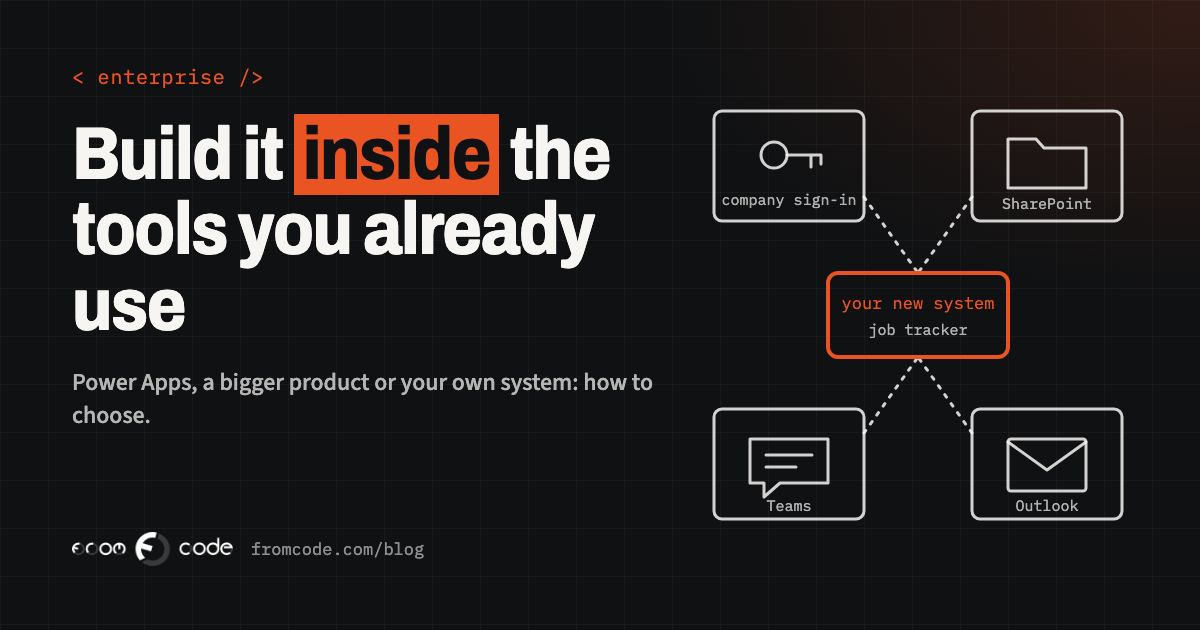
Your company has run on Microsoft for years. Everyone signs in with the same account, the files live in SharePoint and OneDrive, meetings happen in Teams, and the calendar is Outlook. Now you need something Microsoft 365 does not do out of the box: a job tracker for your field engineers, a client intake process for the practice, a booking system for the meeting rooms and vans, an approvals flow that is more than a chain of e-mails.
Someone suggests building it in Power Apps, because "it comes with our licence". Someone else says you should buy a bigger Microsoft product. A third person says a custom system would be better, and the room goes quiet, because that sounds like another password, another vendor and another place where company data lives.
All three can be the right answer. Which one depends on a handful of things that are easy to check before anyone builds anything, and on clearing up a few beliefs that cost companies a lot of time. This article goes through the most common of them, what is actually true today, and how to decide what to build inside the stack you already have.
Myth 1: inside the stack means a Microsoft product
The belief: if the company runs on Microsoft, any new software has to be a Microsoft product, or it will not fit.
What is true: "fitting into the stack" is about how the software behaves, not whose name is on it. For the people using it, a system fits when they sign in with the account they already have, when files end up in the SharePoint site where they already look, when reminders arrive in Teams or Outlook, and when leaving the company switches off their access in one place.
Microsoft built its platform so that other software can do all of that. Microsoft Entra ID, the sign-in service behind every Microsoft 365 account, lets a separate application use the same company login. Microsoft Graph, the official interface to Microsoft 365, lets an application read a calendar, save a file into a document library or post a message into a Teams channel, with the permissions an administrator approves. A purpose-built system can sit inside Teams as a tab, or inside Outlook as an add-in.
So the real question is not "Microsoft or not". It is "which pieces of what we already have should the new system use, and which should it leave alone".
Myth 2: Power Apps is free, so it is the cheapest
The belief: Power Apps is free with Microsoft 365, so building there is always the cheapest route.
What is true: part of it is included, and that part is genuinely useful. Most business Microsoft 365 plans let staff build and run simple apps on top of SharePoint lists, Excel files and the other standard connectors. For a holiday request form or an equipment checklist, that can be all you need, and it costs nothing extra.
The moment an app needs a proper database (Microsoft's own is called Dataverse) or one of the connectors Microsoft calls premium, every person who uses the app needs a Power Apps Premium licence. On 9 September 2026 Microsoft announced that the list price for Power Apps Premium goes from $20 to $22 per user per month from 1 January 2027, on new purchases and renewals. That is the first list price rise for the product in more than five years, by Microsoft's own account, and it is a per-person cost that grows with every new member of staff who needs the app.
None of that makes Power Apps expensive or cheap on its own. It means the honest comparison is the yearly licence cost for everyone who will use the app, for as long as you expect to use it, against the cost of building and running something else. Work that number out before choosing, not after the app has become part of daily work.
Myth 3: a list will hold it forever
The belief: a SharePoint list or an Excel file can hold the data for as long as the business needs.
What is true: a list is a fine place to start and a risky place to stay. Small apps on SharePoint work well. The trouble starts quietly as the data grows.
Power Apps sends a search or filter to the data source when it can. When a formula uses something the source cannot handle, it fetches the first records and filters those on the phone or laptop instead. Microsoft's documentation on delegation is direct about it: the default is the first 500 records, the setting can be raised to 10,000, and if the record you are looking for is beyond that, the search simply does not find it. There is a warning in the editor, but the person using the app sees nothing. They search for a client, get no result, and assume the client is not there.
Lists also struggle with the shape of real business data: a client with several sites, each site with equipment, each piece of equipment with a service history. That is a set of linked tables, which a database handles easily and a list handles with workarounds.
If your app is heading that way, plan the move to a proper database early, while it is a small job.
Myth 4: anything custom means another login
The belief: a system built outside Power Apps means another login, another place for files and another thing for IT to manage.
What is true: only if it is built that way. A well-built system for a Microsoft company uses the company sign-in, so there is no new password and no separate user list to keep in step. When someone leaves and their Microsoft account is disabled, their access to the new system goes with it.
Files can go straight into the SharePoint library where people already look for them, with the folder structure the business already uses. Notifications can arrive in the Teams channel the engineers or the reception team already watch. Reports can land in the Excel workbook the finance person already opens every Monday.
Myth 5: moving on wastes what you built
The belief: if you have already built something in Power Apps, moving away from it means throwing that work away.
What is true: the app you built is the best specification you will ever have. It shows which screens people actually use, which fields they fill in, where they work around a limitation and which steps they skip. That is exactly what a developer needs to know, and it took months of real use to learn.
The data can usually move with it. A SharePoint list or a Dataverse table can be exported and loaded into a new database, and for a while the old app and the new system can run side by side while staff switch over. Some companies keep the Power App for the simple parts, such as a quick form on a phone, and move only the heavy part into a purpose-built system.
Moving on from a Power App is rarely a failure. Very often it means the app did its job: it proved the process was worth investing in.
Where Power Apps is the right answer
Power Apps is the right answer more often than people who build custom software like to admit. It fits well when the app is used by your own staff rather than by clients, when the data is modest and fits comfortably in a list or a few tables, when the process is close to a form plus an approval, and when someone in the company enjoys building and maintaining it.
It also fits when you are not sure yet what you need. A quick app that a few people use for a month will tell you more about the process than any number of meetings.
Two limits are worth knowing in advance. The first is the daily allowance of requests each user's app and automations may make. Microsoft's published limits, updated in November 2026, give a user on the rights included with Microsoft 365 6,000 requests per 24 hours, against 40,000 with a Power Apps Premium licence; most small apps never come near either. The same page says that from April 2027 Power Automate starts moving to per-user limits for flows that run under a user's licence, so several busy automations owned by one person will share that person's allowance. The second limit is ownership: an app built by one enthusiastic member of staff is often understood only by them. Make sure someone else can open it, change it and fix it.
When a purpose-built system fits better
A purpose-built system is usually the better choice when one or more of these is true:
- People outside the company use it. Clients booking, patients filling in forms, subcontractors updating jobs. They do not have your Microsoft accounts, and licensing them, if it is possible at all, changes the cost completely.
- The data is large or connected. Thousands of records that must always be found, or linked records (clients, sites, equipment, visits) that need to stay consistent.
- The rules are specific to your business. How a job is priced, when a contract renews, who may approve what amount. These belong in code that is tested, not in formulas spread across screens.
- It has to work on a poor connection. Engineers in a basement or a plant room need an app that keeps working offline and catches up later.
- The licence count keeps growing. If the number of people who need a Premium licence rises every year, the comparison with a one-off build changes every year too.
Four lines before any build
Before anyone builds anything, write one line for each of these: who will use it (staff only, or clients too), roughly how many records there will be in two years, which Microsoft pieces it must use (sign-in, SharePoint, Teams, Outlook, Excel), and what it would cost per year in licences for everyone who needs it. Those four lines decide most of the choice, and they take an afternoon.
What working inside your stack looks like
Building inside the stack you have is mostly about a few early decisions, made deliberately.
Sign-in. The new system uses the company's Microsoft sign-in, and groups in Entra ID decide who sees what. Adding a new engineer to the "Engineers" group gives them the right screens on day one.
Files. Decide which SharePoint site and library the documents belong to, and let the system save there with a clear naming scheme. People then find a signed job sheet where they would have looked for it anyway.
Messages. Choose one channel for each kind of alert: a Teams channel for the team, an Outlook e-mail for the client, nothing at all for things nobody needs to know. One well-placed message is worth more than five that get muted.
Permissions. Ask for the smallest set of permissions the system really needs, and have the person who looks after Microsoft 365 approve them. An application that can read every mailbox in the company because it was easier to set up is a risk nobody should sign off.
Data. Decide where the master copy of each piece of information lives. Client details in the new system, documents in SharePoint, invoices in the accounting software. Every other place shows a copy and links back.
Get those five right and the new system feels like part of Microsoft 365 to the people using it, whoever built it.
Comparing the cost honestly
When you compare the options, line them up over the same period, three years being a sensible minimum, and include everything.
For Power Apps that means the licences for every person who needs Premium features, the hours of whoever builds and maintains the app, and the cost of the workarounds when the app reaches its limits. For a purpose-built system it means the build, the hosting, and a modest amount of ongoing maintenance each year. For a larger Microsoft or third-party product it means its own licences, the setup, and the parts of your process you would have to change to fit it.
Then look at what each option does when the business grows. Licences per person grow with headcount. A purpose-built system mostly does not. A larger product may grow in price tiers. The cheapest option this year is not always the cheapest over the life of the system, and the reverse is just as true.
What I would do first
If a Microsoft company asked me tomorrow what to build, I would start with the four lines from the box above, written with the people who will use the system. Then I would look at what already exists: the lists, the Excel files, any Power Apps someone has built. They show where the real process lives.
If everything points to staff-only use, modest data and simple steps, I would suggest Power Apps and help make sure someone besides its builder can maintain it. If it points to clients using it, connected data or rules that matter, I would suggest a purpose-built system that uses the company's Microsoft sign-in, saves into the SharePoint libraries people already use and sends its messages through Teams and Outlook.
Either way, the goal is the same: one more useful screen for the people doing the work, inside the tools they already open every morning, with costs that are known before the first line is built.
If the new system has to exchange data with others you already run, making two systems talk to each other covers what an integration really involves.
What would you build inside your Microsoft setup?
Discuss your projectTell me who would use it and what it has to do, and I will tell you which route fits and what it would take.