
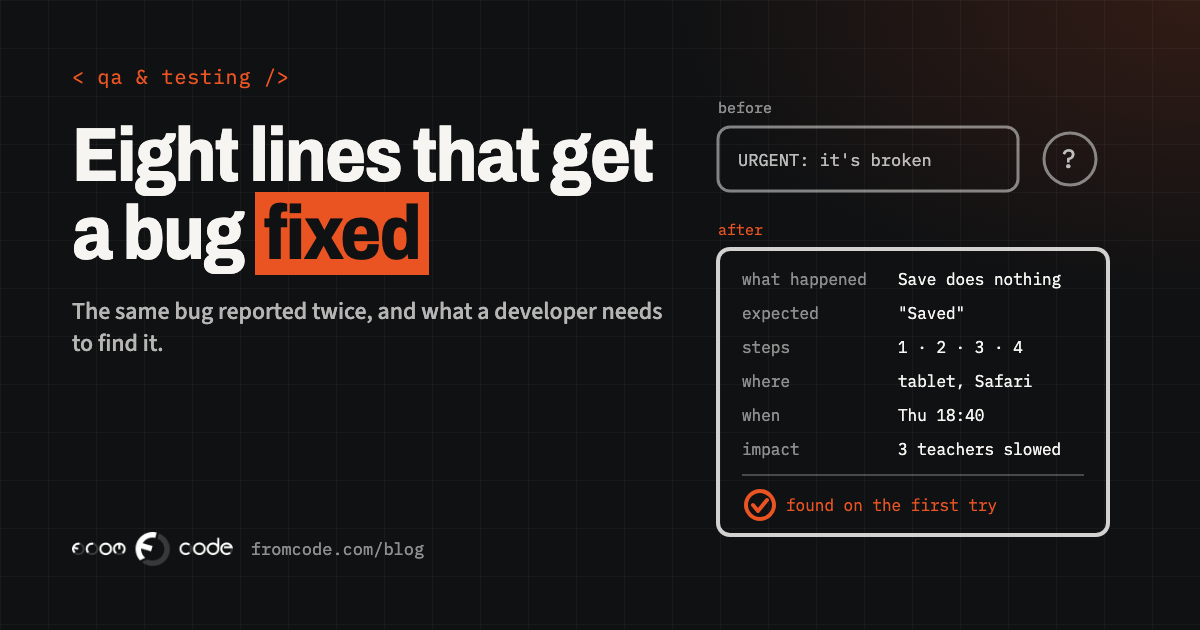
The Save button on the attendance screen does nothing. A teacher at a language school taps it three times, gives up, and tells the office. The office manager writes to the developer: "Attendance is broken again, please fix urgently." Two days later the answer arrives: "It works for me. Can you send more details?"
Both people did their job. The message simply did not carry what a developer needs before they can start. This article shows the same bug reported twice, once the usual way and once in eight short lines, and explains what each of those lines saves you. It needs no technical knowledge, only a habit and a template you can copy at the end.
Why “it doesn't work” takes days
A developer can only fix what they can see happen. The first job with any bug is to make it appear on their own screen, in front of them, on demand. Until that moment they are guessing, and a guess that turns out wrong costs you a "fix" that changes nothing.
So every detail that is missing from a report becomes a question, and every question is a round trip: they ask in the afternoon, you answer the next morning, they try again. Three missing details can turn a twenty-minute fix into a week. The fix itself is rarely the slow part. Finding the bug is.
A good report is therefore one thing above all: a path the developer can follow, step by step, and arrive at the same broken moment you saw.
Before: the report most people send
Here is the report as it is usually sent:
Subject: URGENT
Attendance is broken again, please fix urgently.
It is honest and it is fast to write. Now read it as the person who has to act on it. Which screen: the daily register, or the monthly attendance report? Which teacher, which class, which date? On the classroom tablet, a phone, or the office computer? Did the page show an error, freeze, or look fine and quietly lose the marks? Does it happen to everyone or to one person? And "again": is this the problem from last spring, or a new one?
The developer opens the attendance screen with their own test account, marks a pupil present, presses Save, and it saves. From where they sit, nothing is broken. That is how "it works for me" is born, and why it is usually said in good faith.
After: the same bug in eight lines
Here is the same bug, reported by the same office manager, after five more minutes of effort:
Title: Daily register – Save does nothing for evening classes (tablet)

What happened: On the daily register, the Save button does nothing.
  No message, and the marks are gone when the page is reopened.
What I expected: "Attendance saved" and the marks kept.
Steps:
  1. Log in as teacher Elena P.
  2. Open Daily register > English B1, Thursday 18:30 group
  3. Mark any pupil present
  4. Tap Save
How often: Every time for this group. The 10:00 group saves normally.
Where: classroom tablet (iPad, Safari). Also fails on my office PC in Chrome.
When: first noticed Thursday 12 November, about 18:40.
Impact: 3 evening teachers are keeping attendance on paper. No deadline
  until the monthly report on the 30th.
Attached: 20-second screen recording.
Nothing in it is technical. Every line is something the office already knew or could find out by trying once more. And one line, "the 10:00 group saves normally", points the developer almost straight at the cause: something is different about the evening groups. The rest of this article goes through the lines one at a time.
What happened, and what you expected
Two sentences carry most of the weight: what happened, and what you expected to happen.
"What happened" describes what you saw, in plain words: the button does nothing, the page goes white, the total shows 0, the e-mail never arrives. "What I expected" matters just as much, because some bugs are really misunderstandings in one direction or the other. If you expected a confirmation e-mail and the system was never built to send one, that is a different conversation from a fault, and it is better to find out in the first message.
Describe what you saw and leave the cause to the developer. "The server must be down" or "the database lost my data" sounds helpful, and it sends the developer to check the server and the database first. "I pressed Save and nothing changed" lets them start in the right place.
The steps, from a clean start
The steps are the path. Write them as a numbered list starting from a clean point, usually logging in, and use the real names: which account, which class, which date, which record. "Open a class and save" hides exactly the detail that matters. "Open English B1, Thursday 18:30" lets the developer open the very same record.
Before you send, follow your own steps once more. This takes a minute and tells you three useful things. Whether it happens every time or only sometimes. Whether you remembered the steps correctly. And often, what makes the difference: it fails for this group and works for that one, it fails on the tablet and works on the computer. Each difference you notice narrows the search more than anything a developer can do from their side.
If the page has an address at the top of the browser, copy it into the report. It often contains the exact record you were looking at.
Where it happened: device, browser, account
The same system can behave differently on an iPhone and on a Windows computer, in Safari and in Chrome, for a teacher and for an administrator. So say where you were:
- The device: office computer, classroom tablet, your own phone.
- The browser, or for a mobile app, the app version. In most browsers the menu has an "About" entry that shows the version; in an app it is usually at the bottom of the settings screen.
- The account you were logged in with, and its role. Never send the password; the name of the account is enough.
If you can, try once on a second device. "Fails on the tablet and on my PC" tells the developer the problem lives in the system itself. "Fails only on the tablet" tells them to pick up a tablet.
When it happened
Write the date and the time, to the minute if you can. Behind every system there is a log, a running diary of what the system did and what went wrong. With "Thursday, about 18:40" the developer can open that diary at the right page and often read the exact error the system recorded while you were looking at a button that did nothing. With "sometime last week" they are reading a week of entries.
If your staff or customers are in more than one country, add the time zone. And note whether anything changed shortly before: a new term was opened, a new teacher was added, the app was updated. You are not diagnosing, only giving the developer the same context you have.
Show it: a screenshot or a twenty-second recording
A picture answers a dozen questions at once, and a short recording answers more, because it shows what you did just before. Every current computer and phone can record its own screen with nothing installed:
- Windows 11: press the Windows key + Shift + R, select the area and press Start. Microsoft's Snipping Tool guide has the steps; Windows key + Shift + S takes a still image.
- Mac: press Shift, Command and 5 together and choose Record. On macOS Tahoe 26 or later you can record a single window, as Apple describes, which keeps everything else on your screen out of the video.
- iPhone and iPad: open Control Centre, tap the Record button, and stop from the top of the screen. The video lands in Photos (Apple's steps).
- Android: swipe down twice from the top and tap "Screen record" (Google's steps).
Twenty seconds is plenty. Include the address bar if there is one, and start from the step before the problem, so the video shows the path as well as the result.
One caution. A recording shows whatever is on the screen, including pupils' names, phone numbers or payments. Where you can, reproduce the problem with a test record, record only the window you need, and send the file through the channel you already use for work, the same way you would treat the data itself.
There are also tools made for exactly this. A browser extension such as Jam records the screen and attaches the technical details a developer would otherwise ask for. Its pricing page lists a free plan with 30 reports and recordings of up to five minutes, and a team plan at $14 per person per month billed yearly, as of November 2026. For a business that sends a few reports a month, the built-in recorder is enough.
If the screen shows an error message, copy it exactly, as text, including any number or code in it. "Something about a server" and "Error 403: you do not have permission to edit this register" lead to completely different places, and the second one is nearly the whole answer.
A screenshot of the message is good. The text pasted into the report as well is better, because the developer can search the code and the logs for those exact words. If the message disappears after a few seconds, the screen recording will have caught it.
How urgent it really is
"URGENT" on every report carries no information. What a developer, and you, need to know is who is stopped and until when:
- Stopped: people cannot do their work and there is no way round it. Reception cannot enrol anyone; nobody can log in.
- Slowed: there is a way round, and it costs time. Teachers are keeping attendance on paper and someone will type it in later.
- Cosmetic: it looks wrong and nothing is lost. A column is misaligned, a label has a typo.
Say which one it is, how many people it touches, and whether a date is coming: the monthly report on the 30th, enrolment opening on Monday. In the example, "three teachers on paper, no deadline until the 30th" lets the developer plan honestly: this week, not tonight. That honesty pays you back the day something really is stopped, because your "stopped" will be believed immediately.
One problem per report, in one place
One problem per report. If the attendance screen will not save and the timetable shows last year's holidays, those are two reports with two titles. They will be fixed at different times, perhaps by different people, and a single message with five problems in it almost always ends with three fixed and two forgotten.
And one place. Agree with your developer where reports go: a tracker, a shared board, or one e-mail address. A report that arrives as a voice message, continues in a chat and ends in a phone call exists nowhere, so nobody can check later what was said or whether it was done. The title helps here too: "Daily register – Save does nothing for evening classes" can be found again in six months. "URGENT" cannot.
If several people in your company report problems, pick one person who collects them. That person quickly learns to spot duplicates and to ask colleagues the two questions that matter, "what exactly did you press?" and "can you show me?", before anything is sent.
When it only happens sometimes
The hardest bugs appear only now and then. Report them anyway, and say plainly that you cannot make it happen on demand. Then keep a small list: each time it happens, write the date and time, who it happened to, on which device, and what they were doing.
After four or five entries a pattern usually shows itself. It is always the same teacher. It is always after 17:00. It is always on the phone, on mobile data, in the room at the back of the building. You do not need to explain the pattern, only to show it. A list of five exact times is also five places in the system's log where the developer can look, which is often enough on its own.
What you should get back
A good report deserves a good answer, and it is fair to expect one. Within a working day or so, a short confirmation that it was received and understood, with any questions asked together in one message. Then, when it is fixed, three things: what the cause was in a sentence you can understand, how you can check the fix yourself, and whether it could have affected anything else, such as marks that were lost on earlier evenings.
Then close the loop. Follow the same steps from your own report and confirm that it now works. It takes two minutes, and it is the only check made by the person who actually saw the problem.
One more thing is worth asking for. Each fixed bug should leave behind a small automatic check that would catch the same fault if it ever came back, so you are never billed twice for the same problem. I describe how that works in which tests to write first. And if the answer to your report is "that is a change, not a bug", the next step is an estimate, which I covered in why a small change sometimes is not.
A template to copy, and how to make it effortless
Here is the whole report as a template. Put it where your staff will find it: a pinned note, a saved e-mail draft, or the description field of your tracker.
Title: [screen] – [what goes wrong]
What happened:
What I expected:
Steps (from logging in, with real names and dates):
How often: every time / sometimes / once
Where: device, browser or app version, account
When: date and time
Impact: who is stopped or slowed, any deadline
Attached: screenshot or short recording, exact error text
When I build a system for a business, I prefer to take most of this off people's hands. A "Report a problem" button inside the system can fill in the page, the account, the device, the browser and the time by itself, so the person only writes what happened and what they expected. If you are having software built or changed now, it is a small thing to ask for, and it turns every member of staff into someone who sends the after version without thinking about it.
Is there a bug that keeps coming back?
Discuss your projectTell me what the system does and what you see when it goes wrong.